
The Best Ways to Extract Text from Images in 2025: A Real-World Guide

Hey there! If you've ever stared at a screenshot, a scanned document, or a photo with text on it and thought, "Ugh, I wish I could just copy this without typing it all out," you're not alone. I've been there too—whether it's grabbing a recipe from an Instagram post, digitizing old notes, or pulling quotes from a PDF. Luckily, image to text converters (powered by something called OCR, or Optical Character Recognition) make this super easy these days.
In this post, I'll share some of my favorite tools for extracting text from images, including free options like Google Lens and Google Gemini, plus a handy online one. We'll cover how they work in real life, tips for getting the best results, and even touch on related stuff like handling PDFs or checking if text is AI-generated. Let's dive in!

Why Bother with Image to Text Tools?
These tools save you tons of time. Instead of retyping everything manually, you upload or snap a photo, and boom—editable text appears. They're great for:
- Copying text from screenshots or memes.
- Converting scanned docs or PDFs with images into searchable text.
- Working with handwritten notes (some handle this better than others).
- Even niche things like prepping files for design (e.g., turning PNG text into editable SVG).
Plus, with AI improvements, accuracy is way better now, even for tricky fonts or low-quality pics.
My Go-To Tools for Converting Images to Text
I've tried a bunch, and here are the ones I actually use regularly.
1. Google Lens – Perfect for Quick, On-the-Go Extraction
If you're on your phone, Google Lens is my absolute favorite. It's built into the Google app (or standalone on Android/iOS), and you can just point your camera at something or upload a photo to copy text instantly.
It's amazing for real-time stuff—like reading a menu in another language or grabbing info from a billboard. It also translates on the fly and works with handwriting pretty well.

Pros: Totally free, super fast, no account needed. Cons: Not the best for really long documents.
2. Google Gemini – When You Need Smarter Analysis
Google's Gemini (the AI formerly known as Bard) is next-level. You can upload an image, and it doesn't just extract the text—it can summarize it, answer questions about it, or even edit it for you.
This is handy for research or when dealing with complex layouts in docs or PDFs. It feels like having an AI assistant that reads the image for you.
3. Online Tools Like TextOnImg – Simple and No-App Needed
Sometimes I just want something quick in my browser without downloading anything. That's where free online OCR tools shine.
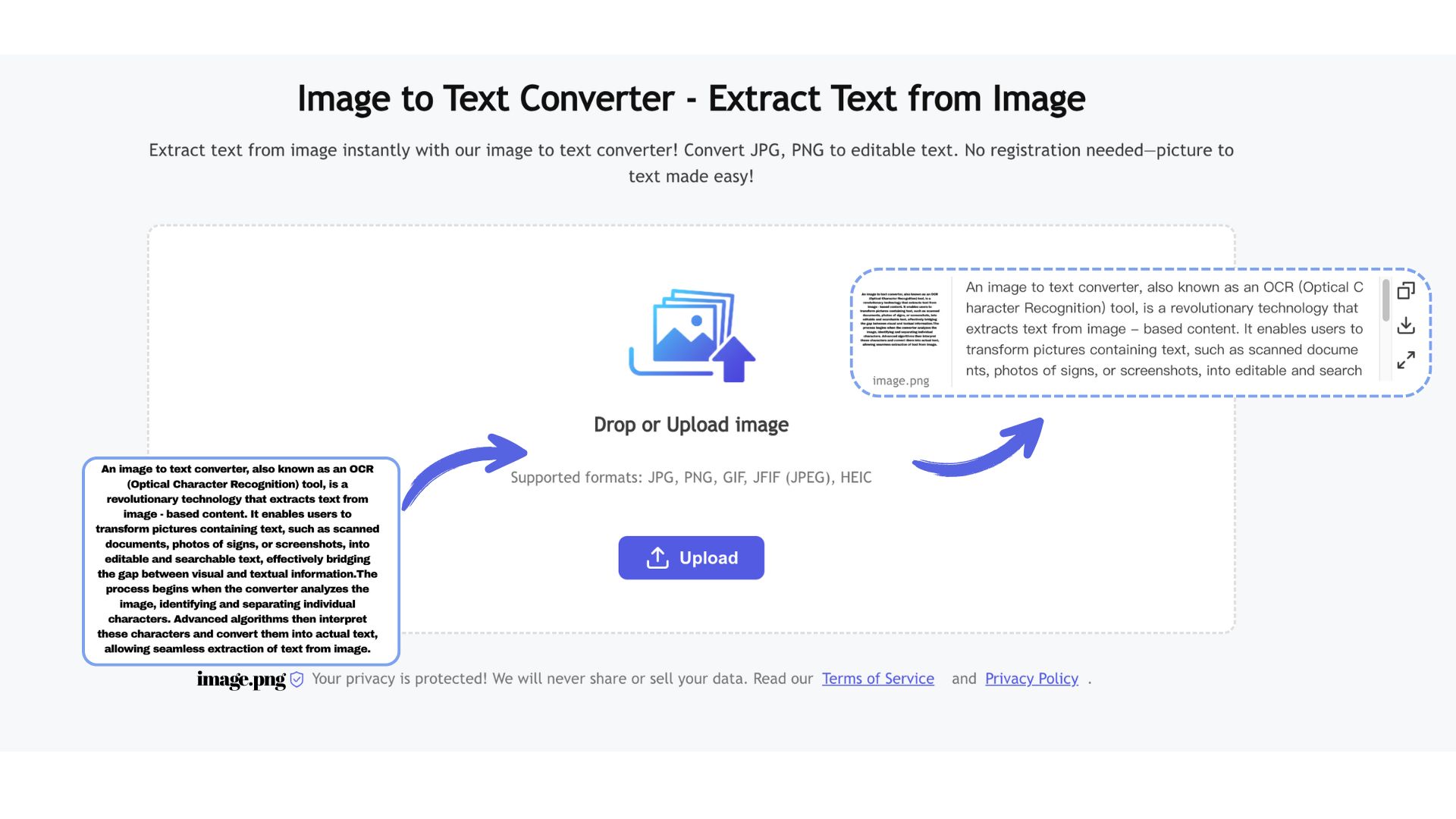
One I've used recently is the Image to Text Converter at TextOnImg.com. It's straightforward: Upload your image (up to 1MB for free), hit convert, and get the text right away. If you have bigger files, they have a Pro plan for up to 100MB.

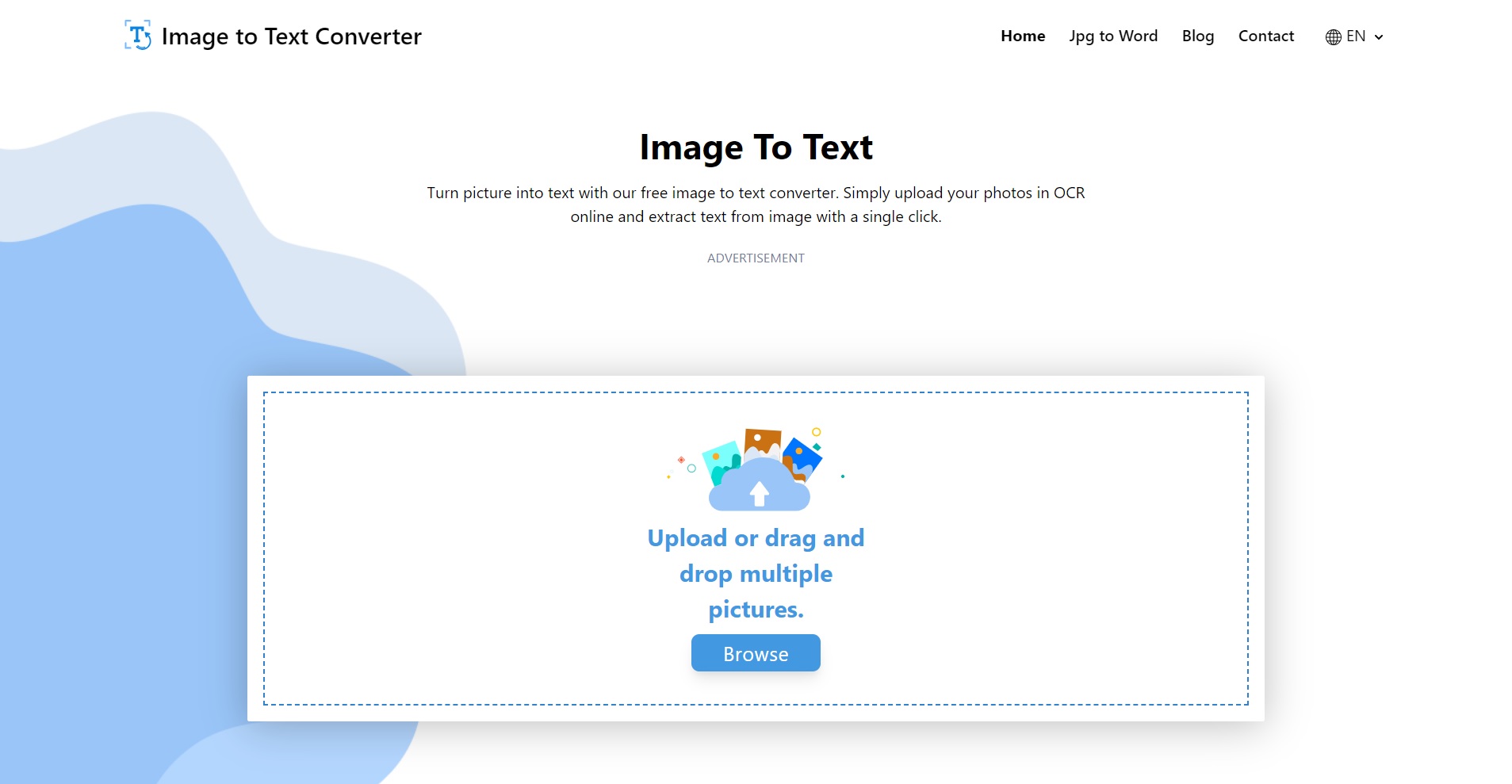
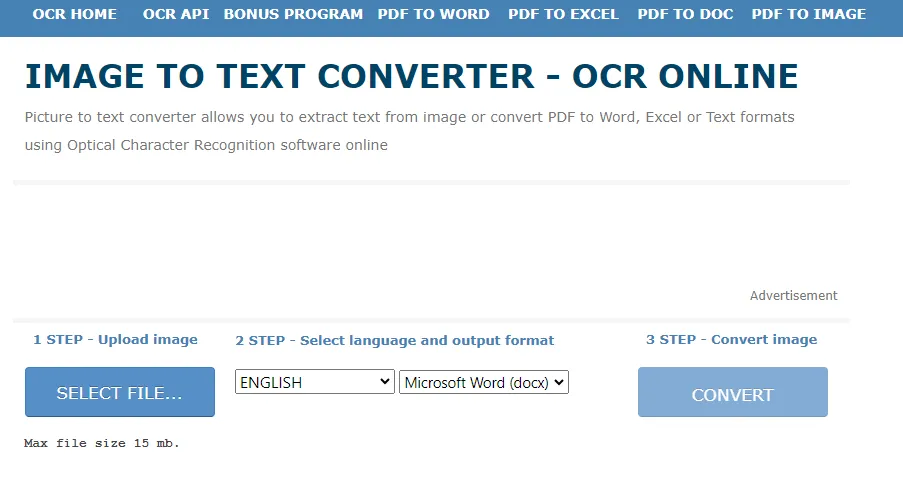
It's great for one-off tasks, and the results come out clean and copyable.
Other solid online options include things like OnlineOCR.net or similar sites if you need more features, like batch processing.

Quick Tips for the Best Results
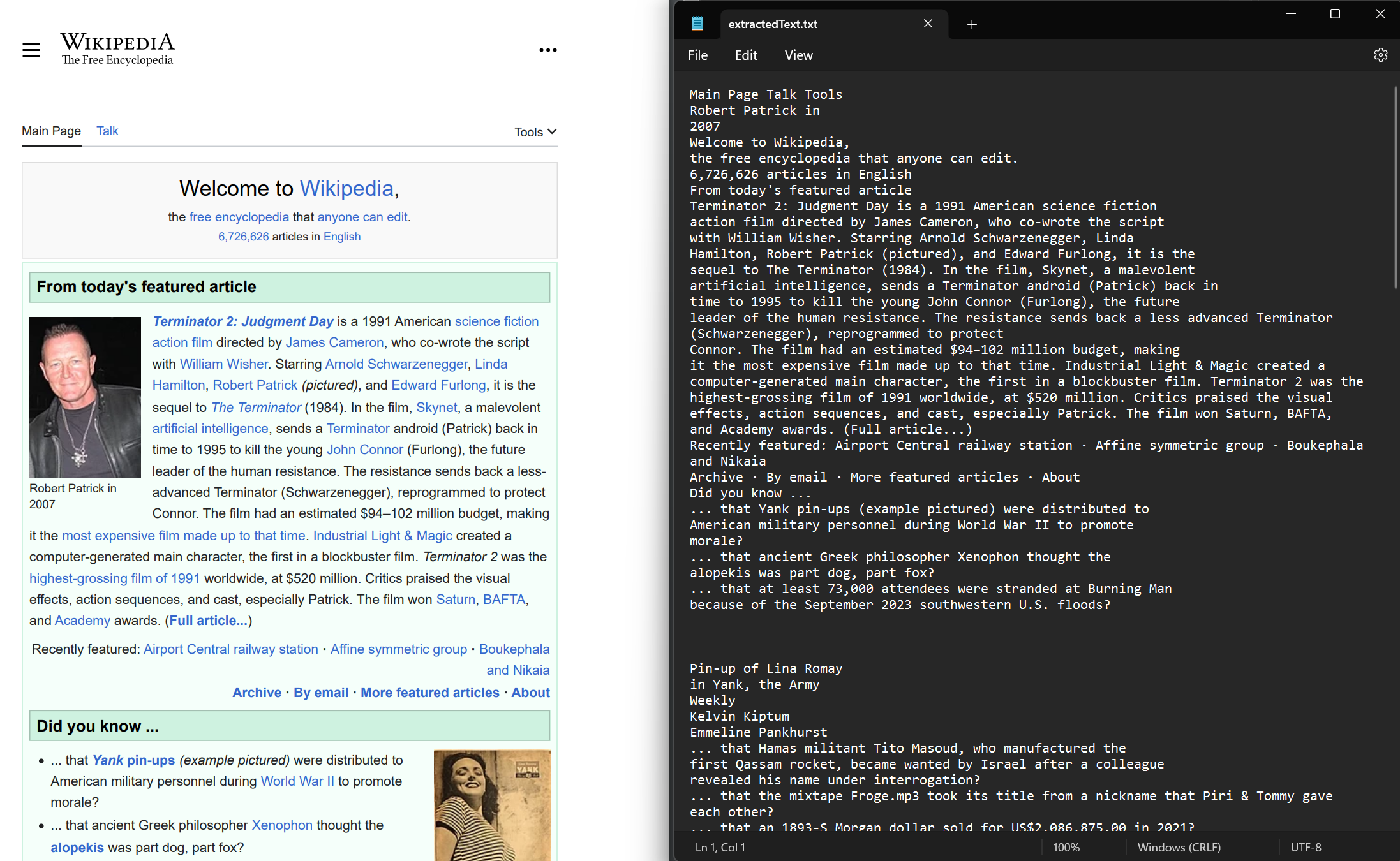
- Use clear, well-lit images—blur or shadows can trip up the OCR.
- For PDFs with images, tools that handle "pdf image to text converter" modes work best.
- After extracting, run the text through an AI checker (like free online ones) if you're worried about errors or originality.
- If you're into design, some advanced tools can help with things like png to svg conversions for editable graphics.
Wrapping It Up
Extracting text from images doesn't have to be a hassle anymore. Start with Google Lens for everyday stuff, Gemini for deeper work, or a simple online tool when you're at your desk.
If you want to try a no-fuss online option right now, check out the Image to Text Converter on TextOnImg.com—it's free for most uses and gets the job done fast.
What's your go-to tool for this? Have you had luck with handwritten text or tough PDFs? Drop a comment below—I'd love to hear your experiences!
(And yeah, this post covers stuff like ai checker, extract text from image, copy text from image, docs, google gemini, google lens, png to svg, convert image to text, and pdf image to text converter—just in case you were searching for those!)